Booting Ubuntu on the Asus Transformer Book T100
https://ubuntu.com/tutorials/create-a-usb-stick-on-windows#1-overview
Create a bootable USB stick on Windows
1. Overview
With a bootable Ubuntu USB stick, you can:
- Install or upgrade Ubuntu
- Test out the Ubuntu desktop experience without touching your PC configuration
- Boot into Ubuntu on a borrowed machine or from an internet cafe
- Use tools installed by default on the USB stick to repair or fix a broken configuration
2. Requirements
You will need:
- A 4GB or larger USB stick/flash drive
- Microsoft Windows XP or later
- Rufus, a free and open source USB stick writing tool
- An Ubuntu ISO file. See Get Ubuntu for download links

3. USB selection
Perform the following to configure your USB device in Rufus:
- Launch Rufus
- Insert your USB stick
- Rufus will update to set the device within the Device field
- If the Device selected is incorrect (perhaps you have multiple USB storage devices), select the correct one from the device field’s drop-down menu

4. Boot selection and Partition scheme
Now choose the Boot selection. Choices will be Non bootable and FreeDOS. Since you are creating a bootable Ubuntu device select FreeDOS.
The default selections for Partition scheme (MBR) and Target system (BIOS (or UEFI-CSM)) are appropriate (and are the only options available).

5. Select the Ubuntu ISO file
To select the Ubuntu ISO file you downloaded previously, click the SELECT to the right of “Boot selection”. If this is the only ISO file present in the Downloads folder you will only see one file listed.
Select the appropriate ISO file and click on Open.

6. Write the ISO
The Volume label will be updated to reflect the ISO selected.
Leave all other parameters with their default values and click START to initiate the write process.

7. Additional downloads
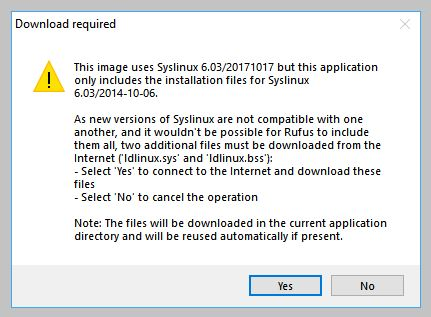
You may be alerted that Rufus requires additional files to complete writing the ISO. If this dialog box appears, select Yes to continue.
8. Write warnings
You will then be alerted that Rufus has detected that the Ubuntu ISO is an ISOHybrid image. This means the same image file can be used as the source for both a DVD and a USB stick without requiring conversion.
Keep Write in ISO Image mode selected and click on OK to continue.

Rufus will also warn you that all data on your selected USB device is about to be destroyed. This is a good moment to double check you’ve selected the correct device before clicking OK when you’re confident you have.

9. Writing the ISO
The ISO will now be written to your USB stick, and the progress bar in Rufus will give you some indication of where you are in the process. With a reasonably modern machine, this should take around 10 minutes. Total elapsed time is shown in the lower right corner of the Rufus window.

10. Installation complete
When Rufus has finished writing the USB device, the Status bar will be green filled and the word READY will appear in the center. Select CLOSE to complete the write process.

Congratulations! You now have Ubuntu on a USB stick, bootable and ready to go.
If you want to install Ubuntu, take a look at our install Ubuntu desktop tutorial.
Preparing a bootable Ubuntu 13.04 USB flash drive
1. Download ubuntu-13.04-desktop-amd64.iso from the Ubuntu download page. Newer versions of Ubuntu don’t yet seem to work.
2. Download Rufus, a tool for creating bootable USB drives.
3. Download and unzip paperWastage’s bootia32.ubuntu_13.04_x64.zip file.
4. Plug a 1GB or larger USB flash drive into your computer.
5. Double-click the Rufus file you downloaded to launch the utility.
6. Choose the drive letter for the flash drive you jut plugged in under the “Device” drop-down menu.
7. Use the following settings: GPT partition scheme, FAT file system, 64 kilobyte cluster size.
8. Make sure the box that says “Create a bootable disk using” is checked, and choose “ISO Image” and click the drive icon on the right to open an Explorer window and find your Ubuntu 64-bit disk image.

9. Click start.
At this point, your computer will format the flash drive (and erase any data that’s already on it — so make sure to backup any important files) and prepare it as a bootable drive that lets you run or install Ubuntu.
When the process is complete, move on to the next step.
10. Open an Explorer window and navigate to the newly prepared flash drive.
11. There should be a folder labeled “EFI.” Click it to open that folder. Then click the folder labeled “BOOT” to navigate to that folder.
12. Copy the bootia32.efi file from step 3 into this folder (make sure you’ve unzipped it first).
That’s it. Your flash drive is now ready. Go ahead and eject it from your PC.
Booting Ubuntu on the Asus Transformer Book T100
The first thing we need to do is disable secure boot on the Transformer Book. That’s pretty easy to do, with these steps. Note that you can complete these steps with the USB drive plugged in or without it — but I had a bit more luck without it.
1. Swipe from the right side of the screen to bring up the Charms menu.
2. Tap “Settings.”
3. Choose the “Change PC settings” option at the bottom.
4. On the following screen tap “Update and recovery.”
5. At the next screen, choose “recovery.”
6. Under the Advanced startup section, choose “Restart now.”

7. This will reboot your device to a blue screen with large icons. Choose the one that says Troubleshoot.
8. At the following screen choose “Advanced Options.”

9. Next, select “UEFI Firmware Settings.
10. Finally hit the “Restart” button.
This will reboot your device into the UEFI settings area, which looks like an old-school BIOS menu. The touchscreen and touchpad won’t work here, but you can navigate using the arrow keys and enter key on the keyboard.
11. Use the arrow keys to get to the Security tab.
12. Scroll down to Secure Boot menu and hit “Enter.
13. Make sure Secure Boot Support is selected, and hit Enter again to bring up a screen that says “Enabled” or “Disabled.”
14. Choose Disabled and hit enter.
15. Hit the Esc key.
Now Secure Boot is disabled. You could theoretically save and exit at this point. But instead, this is the time when I’d recommend plugging in the USB flash drive.
Once it’s plugged in, move on to the next step.
16. Move over to the Save & Exit tab, highlight “Save Changes and Exit” and hit Enter.
17. As the system reboots, press and hold the F2 key so that you return to the UEFI Settings menu.
18. This time when you navigate to the Save & Exit menu you should see an option under Boot Override that says “UEFI” and has the name of your USB flash drive.
19. Select that boot override option and hit enter.
If all goes according to plan, your device should now boot into a GRUB bootloader menu, giving you the option of trying or installing Ubuntu.

I strongly suggest you use the “Try Ubuntu without installing” option at this point — unless you really know what you’re doing. This will let you run Ubuntu without altering your Windows files at all.
Getting past the command line.
We’re not quite done yet though. While Ubuntu should boot up on your system at this point, you’ll probably see the Ubuntu logo for a moment or two and then get dumped out at a command prompt.

Here’s how to get past that point:
1. Type the following commands, and hit enter after each.
2. cd /
3. cd usr/lib/xorg/modules/drivers/
4. sudo rm vesa_drv.so
5. startx
You should see a flurry of text scroll by and then a mouse cursor will appear on screen. A moment later, you should see the full Ubuntu Unity desktop environment.

Keep in mind, you won’t be able to use WiFi out of the box, since Ubuntu doesn’t recognize the device’s wireless adapter. The screen resolution will be stuck at 800 x 600, which could look funny. And there’s no touchscreen support — so while you can detach the screen from the keyboard, you won’t be able to do much with it.
The user interface may also be a bit sluggish — in order to get the X Server to load a graphical user interface, we had to delete the vesa graphics driver. It may be possible to load an alternate driver to improve performance.
But now that we know it’s possible to get alternate operating systems to boot on the Transformer Book T100, it should also be possible for people to figure out how to configure them to take advantage of the tablet/notebook hybrid’s hardware.
ref:
https://liliputing.com/2013/10/booting-ubuntu-asus-transformer-book-t100.html
wow... what a great blog, this writer who wrote this article it's realy a great blogger, this article so inspiring me to be a better Blogger. You should also try my article.
ReplyDeleteRegards by Emma.
Mahadev Book